Linux Bash Shell:
Linux File Permission Management
Used Linux command-line tools to identify and correct insecure file and directory permissions by applying the principle of least privilege with chmod.
Overview
This project demonstrates how Linux file and directory permissions can be inspected and modified using Bash commands. I reviewed the permissions of several files, identified security issues, and corrected them using chmod to ensure users, groups and others only had the permissions they required.
Skills Demonstrated
- Linux command line
- Linux file permissions
- File system navigation
- Bash shell usage
- Permission management
- Directory permissions
- Hidden file management
- Principle of least privilege
- System administration fundamentals
Tools Used
- Linux
- Bash Shell
- chmod
- ls
Process
Inspecting Permissions
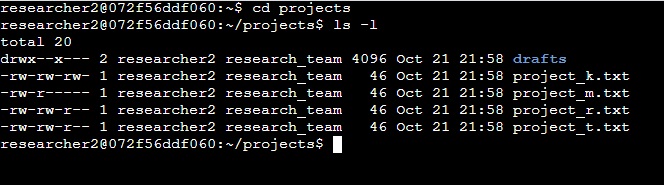
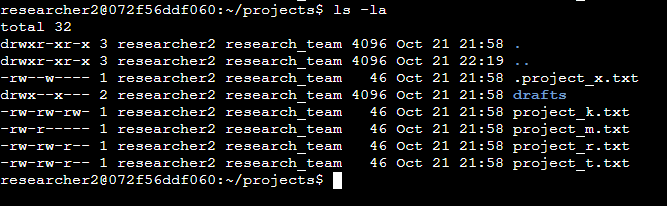
I first navigated to the project directory and listed the contents using ls -l to inspect the permissions assigned to each file. I also used ls -la to reveal hidden files that would not normally appear in the standard directory listing.
Correcting File Permissions
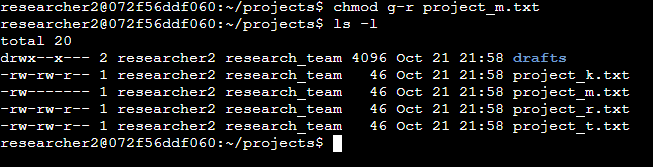
After identifying files with incorrect permissions, I modified them using chmod. This included removing unnecessary write permissions for other users and restricting access so only the file owner could modify sensitive files.
chmod o-w project_k.txt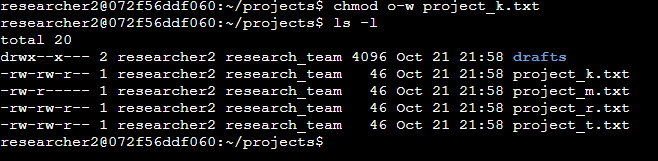
Managing Hidden Files
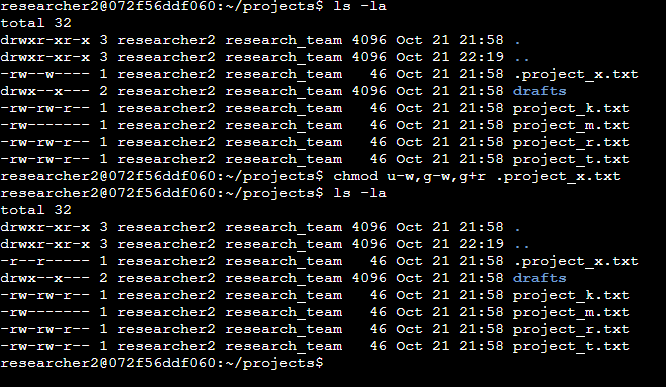
The project also included a hidden file with overly permissive access. I adjusted the permissions to remove unnecessary write access while ensuring users retained only the permissions required.
Securing Directories
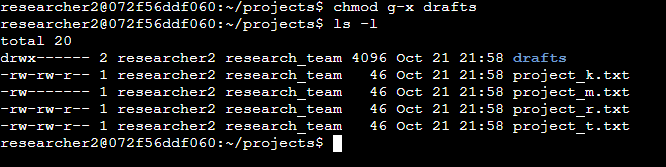
Finally, I corrected permissions on the project directory itself by removing unnecessary execute permissions from the group. This prevented unintended access while keeping the directory functional for its owner.
Code Breakdown
Viewing File Permissions
The ls -l command displays each file's permissions, ownership and other metadata, making it easy to identify files that have been configured insecurely. Adding the -a flag includes hidden files in the output.
Modifying Permissions
The chmod command was used throughout the project to add and remove specific permissions for users, groups and others. Rather than assigning completely new permission values, I modified only the permissions that required changing.
Applying Least Privilege
Each permission change followed the principle of least privilege by ensuring users only had the minimum level of access required. This reduces the risk of accidental modification or unauthorised access to files and directories.
What I Learned
Although this was one of my beginner projects when I first started learning, working through this exercise helped me become much more comfortable reading Linux permission strings and understanding what each permission actually allows. I also gained more confidence using chmod to modify permissions and learned why correctly securing files and directories is an important part of Linux system administration and security.