Linux Software Deployment:
Suricata IDS
Installed and verified Suricata on Linux to demonstrate package management, command-line usage, and basic intrusion detection system deployment.
Overview
This project demonstrates how to install, verify, and remove Suricata on a Linux system using the APT package manager. The goal was to practise Linux software deployment, dependency handling, and basic IDS setup within a controlled environment.
Skills Demonstrated
- Linux terminal usage
- APT package management
- Software installation and removal
- Basic IDS understanding
- Command-line verification
Tools Used
- Linux
- Bash
- APT
- Suricata
Process
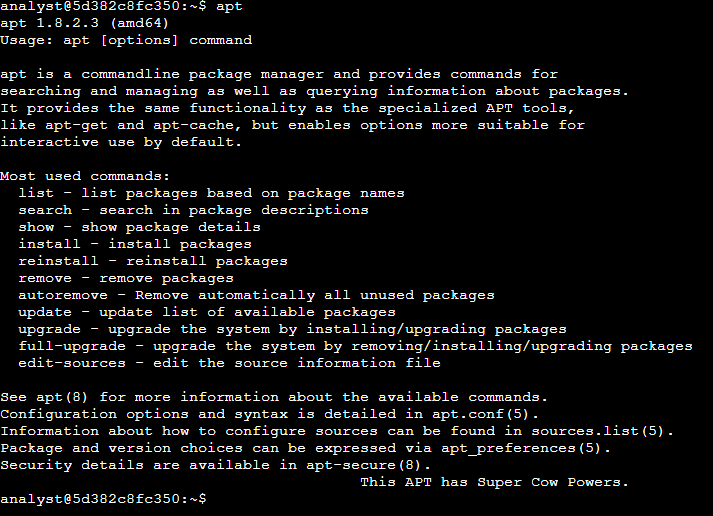
Checking APT
I first checked that APT was available on the system, as it would be used to install and manage the Suricata package.
Installing Suricata
I installed Suricata using the command below:
sudo apt install suricata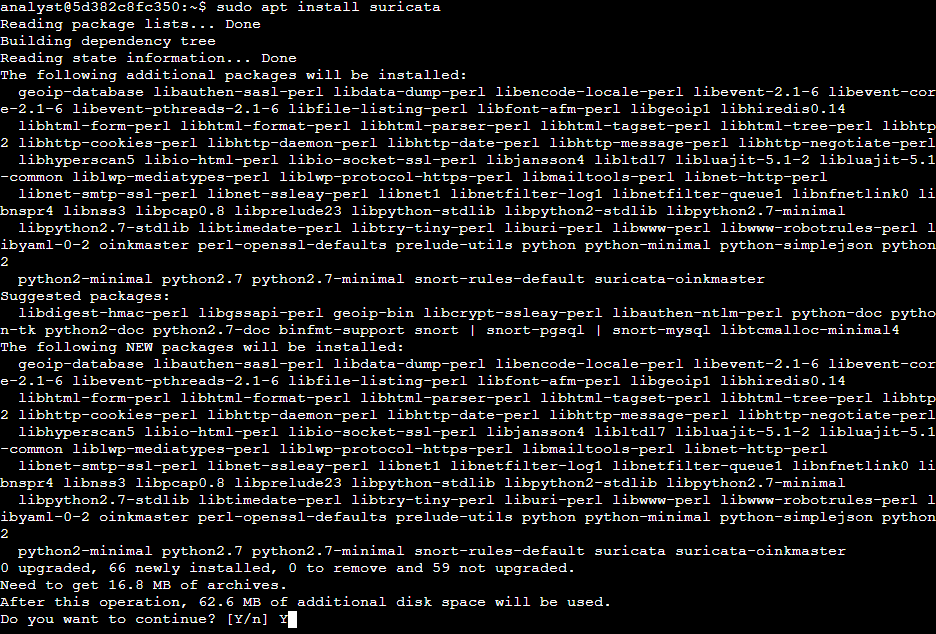
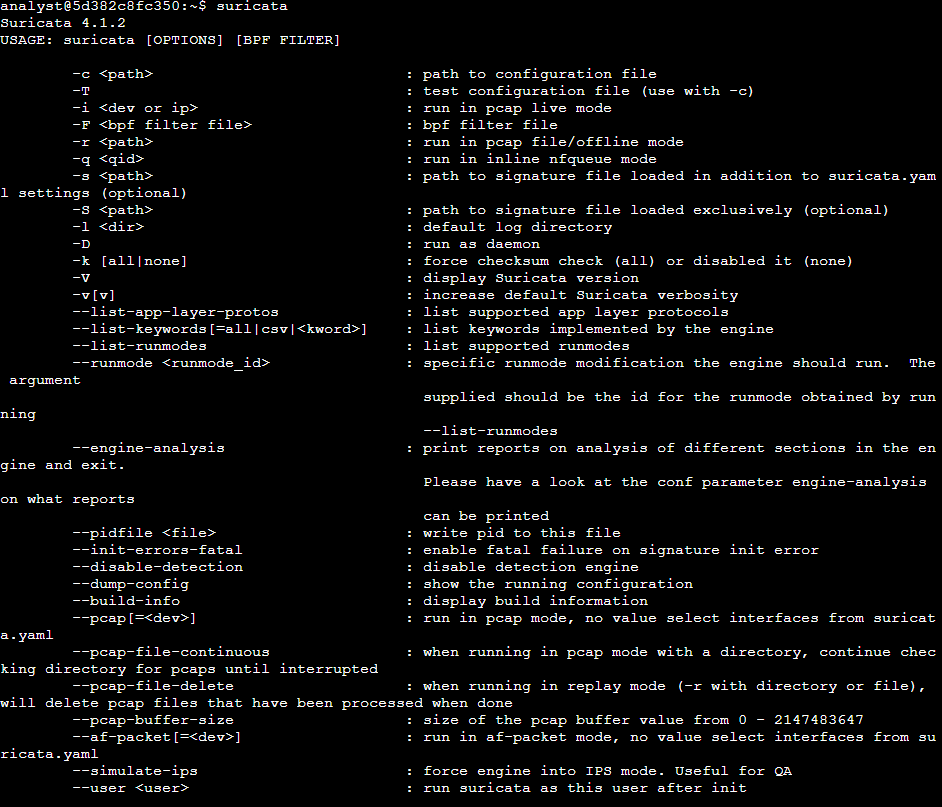
Verifying Installation
After installation, I verified that Suricata was available by running the Suricata command in the terminal.
Removing Suricata
To demonstrate package removal, I removed Suricata using APT.
sudo apt remove suricata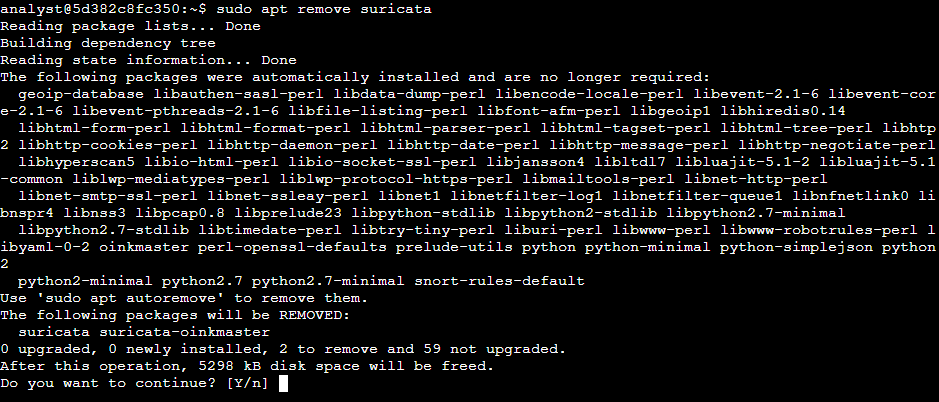
Confirming Removal
I confirmed the package was removed by attempting to run Suricata again, which returned a command not found error.

What I Learned
This project improved my confidence using Linux package management tools and documenting a command-line workflow. It also introduced me to the basics of deploying IDS software in a Linux environment.